Download Vivo USB Driver v2.4.0 (Latest Official)
| Views: 156 | Basic | |

Download Spd Drivers 100 Tested Unisoc Latest R4.20.4201
Download the latest official Vivo USB Driver v2.4.0. This all-in-one driver ensures your PC detects Vivo phones in Fastboot, ADB, MTK, and Qualcomm modes for flashing.
Are you trying to connect your Vivo smartphone to your computer? Whether you want to flash firmware, transfer files, or use advanced repair tools like the FRT Tool Pro, you need the correct drivers.
Vivo phones use a mix of MediaTek (MTK) and Qualcomm processors, and their official driver package ensures that your Windows PC can correctly identify your device in all modes (including ADB, Fastboot, MTK BROM, and Qualcomm EDL 9008). This post provides the latest official Vivo USB Driver v2.4.0.
Download Vivo USB Driver v2.4.0
This is the official all-in-one installer package. It contains both 32-bit and 64-bit drivers in a single executable file.
| File Name: | Vivo_USB_Driver_v2.3.0.zip |
|---|---|
| Version: | v2.3.0 |
| Status: | 100% Tested |
| File Size: | 22 MB |
| Compatible OS: | Windows 7, 8, 10, 11 (32-bit & 64-bit) |
| Password: | frttoolpro.com |
| Rating: |
What is the Vivo USB Driver?
The Vivo USB Driver is an “all-in-one” package that bundles multiple drivers into a single installer. When you install it, your PC gets:
- Vivo ADB Drivers: For connecting your phone when it’s powered on with USB Debugging enabled.
- Vivo Fastboot Drivers: For flashing files in Fastboot mode.
- Vivo MTK Drivers: Special drivers that allow tools to detect Vivo’s MediaTek phones in BROM mode (preloader).
- Vivo Qualcomm Drivers: Drivers to force detect Vivo’s Qualcomm phones in EDL Mode (HS-USB QDLoader 9008) for emergency flashing.
Without this specific driver, your PC might use a generic Qualcomm driver, but the flash tool may fail to recognize the device as a Vivo phone.
How to Install Vivo USB Driver v2.4.0
This is an installer package, so you don’t need to install it manually through Device Manager. Follow these simple steps.
- Download & Extract: Download the
.zipfile from the button above and extract it using WinRAR or 7-Zip. - Disable Antivirus: (Optional but Recommended) Temporarily disable your antivirus to prevent any installation conflicts.
- Run the Installer: Find the
Vivo_USB_Driver_v2.4.0.exefile inside the folder. Right-click on it and select “Run as administrator”. - Follow the Wizard: A setup wizard will appear. Click “Next”, “Install”, and “Finish” to complete the installation.
- Restart Your PC: After the installation is complete, it is highly recommended to restart your computer. This ensures all drivers are loaded correctly.
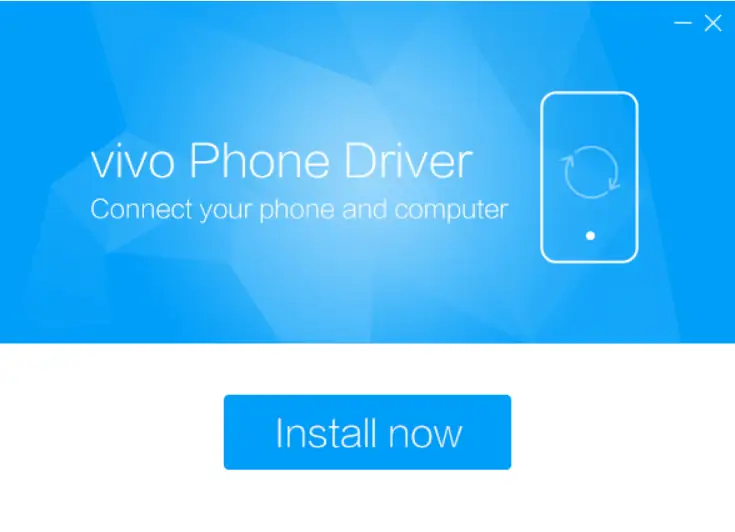
Once restarted, your PC is ready. You can now connect your Vivo device, and tools like the FRT Tool Pro will be able to detect it properly for all operations.