Download Qualcomm USB Driver V1.0 (Installer) for QDLoader 9008
| Views: 519 | Basic | |

Download Spd Drivers 100 Tested Unisoc Latest R4.20.4201
Download the official Qualcomm USB Driver V1.0 (55MB Installer). This driver package automatically installs all necessary drivers for QDLoader 9008 and EDL mode.
Are you having trouble connecting your Qualcomm device in EDL mode? When your phone is bricked or you need to flash firmware, your PC must detect it as “Qualcomm HS-USB QDLoader 9008”. If it’s showing as “QHSUSB_BULK” or an “Unknown Device”, it’s a driver problem.
This official Qualcomm USB Driver V1.0 is an all-in-one installer package. Unlike manual drivers, this 55MB file automatically installs all necessary components for both 32-bit and 64-bit Windows. It’s the most reliable way to ensure tools like FRT Tool Pro can detect your device.
Download Qualcomm USB Driver V1.0 (55MB)
This is the official installer (MSI/EXE) that will automatically set up all necessary drivers for your Windows PC.
| File Name: | Qualcomm USB Driver V1.0.exe |
|---|---|
| Version: | v1 |
| Status: | 100% Tested |
| File Size: | 55 MB |
| Compatible OS: | Windows 7, 8, 10, 11 (32-bit & 64-bit) |
| Password: | frttoolpro.com |
| Rating: |
What is the Qualcomm USB Driver Installer?
This is an official installer package from Qualcomm. It is different from the manual drivers you install through Device Manager. This installer automatically configures your system to recognize Qualcomm devices in various modes, especially the critical EDL (Emergency Download) Mode, also known as **QDLoader 9008**.
You need this driver if:
- Your phone is hard-bricked (dead boot).
- You need to flash firmware using EDL mode.
- Your PC shows “QHSUSB_BULK” in Device Manager.
- Flashing tools (like FRT Tool Pro, QFIL) cannot find your device.
How to Install Qualcomm USB Driver V1.0
Follow these steps to correctly install the driver.
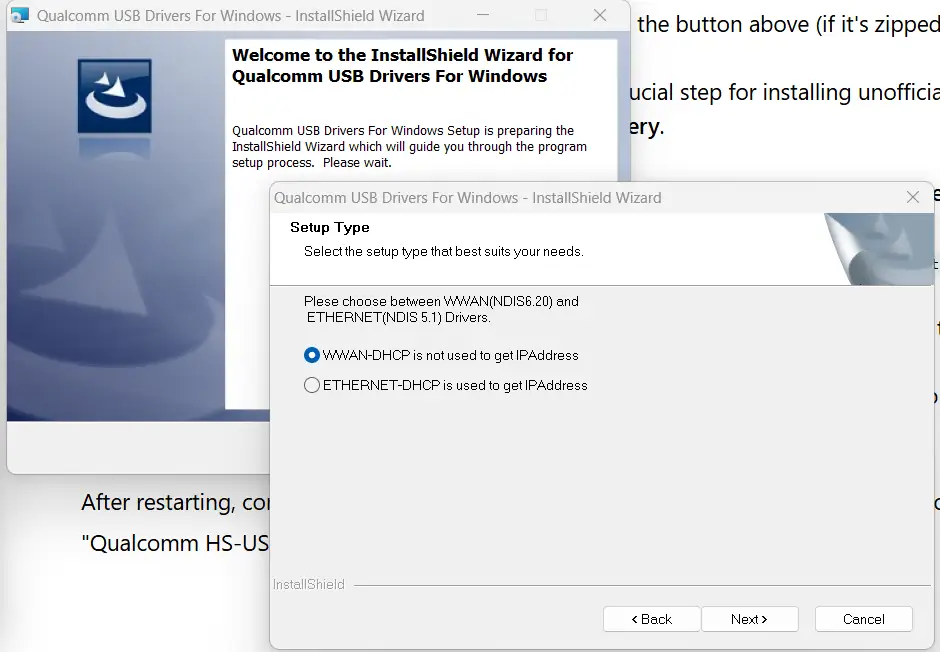
- Download & Extract: Download the
.zipfile from the button above (if it’s zipped) and extract it. You will find the.msior.exeinstaller. - Disable Driver Signature Enforcement: This is a crucial step for installing unofficial or older drivers.
- Go to Settings > Update & Security > Recovery.
- Under “Advanced startup,” click Restart now.
- On restart, go to Troubleshoot > Advanced options > Startup Settings > Restart.
- Press key 7 to “Disable driver signature enforcement”.
- Run the Installer: After your PC restarts, right-click on the
QualcommWindowsDriverInstaller-V1.0.msi(or.exe) file and select “Run as administrator”. - Follow the Wizard: A setup wizard will appear. Click “Next”, “Install”, and “Finish” to complete the installation.
- Restart Your PC: Once the installation is finished, Lrestart your computer one more time. This is essential for the driver to work.
After restarting, connect your device in EDL mode. Your Device Manager should now correctly show “Qualcomm HS-USB QDLoader 9008” under “Ports (COM & LPT)”.