Download Latest MTK USB Drivers (All Versions) – v5.2307 & v1.0.8
| Views: 1570 | Basic | |

Download Spd Drivers 100 Tested Unisoc Latest R4.20.4201
Download the latest MTK USB Drivers for Windows. Get the auto-installer (v1.0.8) and the latest manual driver (v5.2307) for VCOM, Preloader, and BROM mode.
Are you trying to flash your MediaTek (MTK) phone, but your computer won’t detect it? Errors like “VCOM Port not appearing,” “Device stuck on Preloader,” or “BROM mode not connecting” are almost always caused by missing drivers.
To use flashing tools like Odin, SPD Upgrade Tool, or advanced utilities like the FRT Tool Pro, your Windows PC must have the correct MTK USB drivers installed. This post provides two essential driver packages: the popular all-in-one auto-installer (v1.0.8) and the latest manual driver (v5.2307) for new chipsets.
Download MTK USB Drivers (All Versions)
We provide two options. For most users, the “Auto Installer” (v1.0.8) is the easiest and recommended choice. If that doesn’t work for your new device, use the latest “Manual Driver” (v5.2307).
| File Name: | MTK-Driver-v5.2307.zip and MTK_USB_All_v1.0.8.exe |
|---|---|
| Version: | v5.2307 and v1.0.8 |
| Status: | 100% Tested |
| File Size: | 70 MB |
| Compatible OS: | Windows 7, 8, 10, 11 (32-bit & 64-bit) |
| Password: | frttoolpro.com |
| Rating: |
1. MTK USB All v1.0.8 (Auto Installer – Recommended)
This is the most popular, all-in-one package that automatically installs all necessary MTK VCOM, Preloader, and ADB drivers.
What are MTK VCOM/Preloader Drivers?
The MTK VCOM and Preloader drivers are the “bridge” that allows your computer to talk to your MediaTek phone when it is in a special mode. When your phone is turned off, it enters “Preloader” or “BROM” mode for a few seconds when you connect it to a PC. Flashing tools use this moment to send commands.
Without these drivers, your PC doesn’t know what to do with the device, and tools like the FRT Tool Pro cannot perform tasks like Auth Bypass, FRP Reset, or flashing firmware.
How to Install MTK USB Drivers (2 Methods)
Choose one method below. We recommend starting with Method 1.
Method 1: Using the Auto Installer (v1.0.8)
- Remove Old Drivers: (Important!) Go to “Control Panel” > “Add or Remove Programs” and uninstall any old versions of “MTK Driver” you find.
- Download & Run: Download the
MTK_USB_All_v1.0.8.exefile from the button above. - Run as Admin: Right-click the file and select “Run as administrator”.
- Install: A setup wizard will appear. Follow the on-screen instructions (click “Next” and “Install”).
- Restart Your PC: Once the installation is complete, restart your computer.
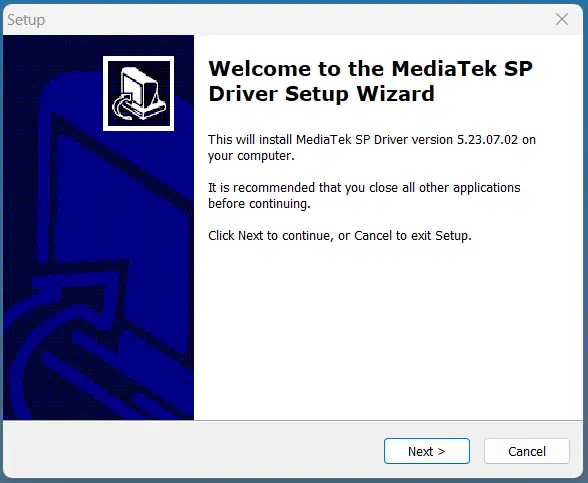
Method 2: Manual Installation (v5.2307)
Use this method if the auto-installer fails or if you have a very new phone.
- Disable Driver Signature: First, you must disable driver signature enforcement in Windows. (This involves restarting in “Advanced startup” and pressing 7).
- Download & Extract: Download
MTK-Driver-v5.2307.zipand extract it to a folder. - Open Device Manager: Right-click the Start Menu and choose “Device Manager”.
- Connect Your Phone: Turn off your MTK phone. Press and hold Volume Up + Volume Down and connect the USB cable.
- Update Driver: An “Unknown Device” (or “MediaTek Preloader”) will appear in Device Manager (it might disappear quickly!). Right-click it and select “Update driver”.
- Browse for Driver: Choose “Browse my computer for drivers” and select the folder where you extracted the v5.2307 files.
- Install: Click “Next” to install the driver. Restart your PC when done.
Once installed, your Device Manager should correctly show “MediaTek PreLoader USB VCOM Port” when you connect your device.